Image to Video
Turn any image into a smooth AI-generated video. Upload a photo, describe the motion, and download your clip for free.
a man in black t-shirt walks into the frame from the left side
The person quickly stands up from the ground and begins to walk forward naturally
expression shifts from sadness to a gentle, genuine smile, eyes brightening
the camera quickly pulls back, revealing the wider scene around the subject
Prompting Guide
ExampleThis photo shows a woman near a tree. The goal: an apple appears on the branch, she grabs it, takes a bite, and makes a sour face. Here is the prompt that makes it happen:
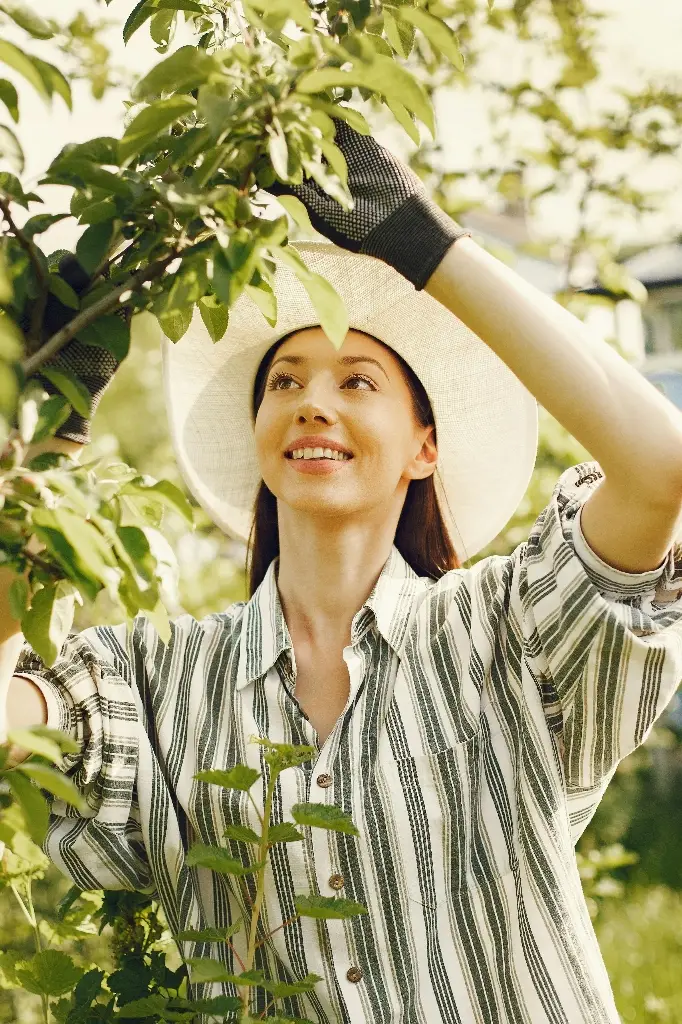 Original Photo
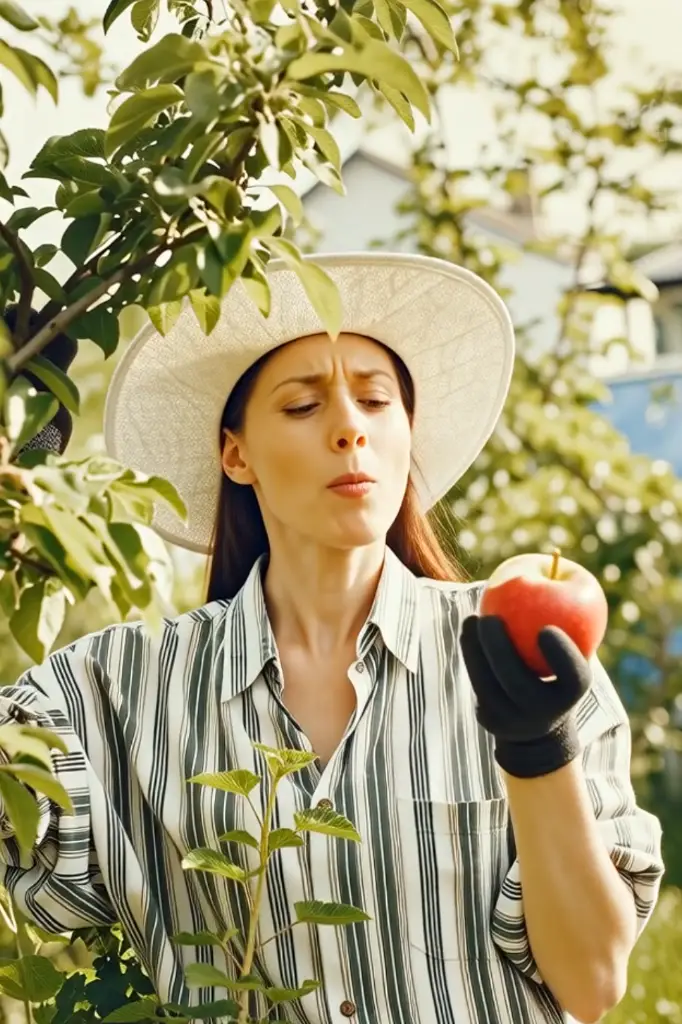 AI Video Result
🎬 Motion only
If your image already shows the person, place & style, just describe what moves.
✨ Add new objects
Want something new in the scene? Describe what appears, where it shows up, and how — for example: "a red apple appears on the branch above her hand".
📷 Keep camera still
Add "static shot" or "fixed camera" at the end so the camera stays in place while the action happens.
What Our Users Say
"The best 👌🏼"
"very good"
"good"
"good performance"
"Amazing"
"good"
AI Image-to-Video Generator: Turn a Photo into Motion With a Prompt
This AI Image to Video Generator turns a still photo into a short animated clip. Upload one image, describe the movement you want, choose model settings, and generate a video online. It works well for photo to video AI use cases such as portraits, product shots, landscapes, concept art, and social media content.
Animate one image into a video
Upload a single image and use image to video AI prompting to create motion. Your uploaded photo becomes the starting frame, and the model generates movement from your description.
Control motion, camera, and pacing
Good prompts describe subject movement, facial expressions, background motion, and camera direction. You can ask for a static shot, slow zoom, pan, push-in, dramatic reveal, or gentle natural motion.
How to use the AI Image to Video Generator
- Sign in for free to use available credits.
- Upload one image that will act as the first frame of your video.
- Write a motion prompt describing what should move, how fast it should move, and how the camera should behave.
- Choose model settings such as duration, resolution, and audio if supported.
- Generate and download your clip when processing is complete.
Popular image-to-video AI use cases
Animate portraits and selfies
Add subtle facial expressions, blinking, head turns, lip movement, or cinematic camera motion to portraits and character photos.
Create product and promo clips
Turn static product photos into eye-catching short videos for ads, ecommerce listings, and social media posts.
Bring landscapes and scenes to life
Animate clouds, water, smoke, lights, foliage, traffic, or atmospheric movement from a single still image.
Prototype ideas quickly
Use animate image AI workflows for storyboards, concept art, music visuals, and quick creative experiments.
FAQ
What is an AI Image to Video Generator?
Can I make a video from a single image?
What prompts work best for image to video?
Do I need video editing skills?
How long does AI image to video generation take?
Can I choose the video length and quality?
Is this AI image to video tool free?
Do I need permission to animate a photo?
Responsible use & consent
AI image-to-video tools are powerful, but they should be used responsibly. Only upload content you own or have permission to use, and avoid creating misleading, harmful, or deceptive videos involving real people.
- Do not animate someone else’s likeness without permission.
- Do not create deceptive or harmful deepfake-style content.
- Do not upload private, sensitive, or copyrighted material without authorization.
 Continue with Google